
Genesis makes it simple for anyone to set up a WordPress website—no developer required.
I create custom WordPress themes for businesses, but I understand not everyone has the budget or time for a full design process. This guide walks you through building a WordPress site yourself with recommendations to keep it fast, attractive, and SEO-friendly.
Quick Links
- Domain and Hosting
- Pick a theme
- Install the theme
- One-click demo install
- WordPress training
- Recommended plugins
Need help?
I can connect you with WordPress developers who can assist with setup and customization.
Contact Me
Why Genesis?
Many WordPress themes are packed with unnecessary features that slow sites down and complicate editing. After purchasing a theme, it can be difficult to make it look like the demo. Genesis takes a different approach: it’s engineered for speed and search visibility, and recent themes include one-click demo import to make setup straightforward.
Genesis uses a core framework (the parent theme) that supplies essential features and tools, while design and layout variations come as child themes. There are many Genesis child themes available—choose one that best fits your needs.
Where to find Genesis themes?
Genesis themes and the framework are available from StudioPress. If you host with WPEngine, you may have access to their theme library through your hosting account.
Below are the steps to set up a WordPress site using a Genesis theme.
Step 1: Domain and Hosting
If you already have a live website, skip to the next step. Otherwise, start by registering a domain—the address people type into their browser. Domains can be purchased from registrars for around $10/year.
Next you need a web host—the server that stores your website. For WordPress sites, I recommend a managed WordPress host that specializes in performance and security. After purchasing your domain and hosting, follow your host’s instructions to point the domain to the new server. Once configured, you’ll have a fresh WordPress install ready to customize.
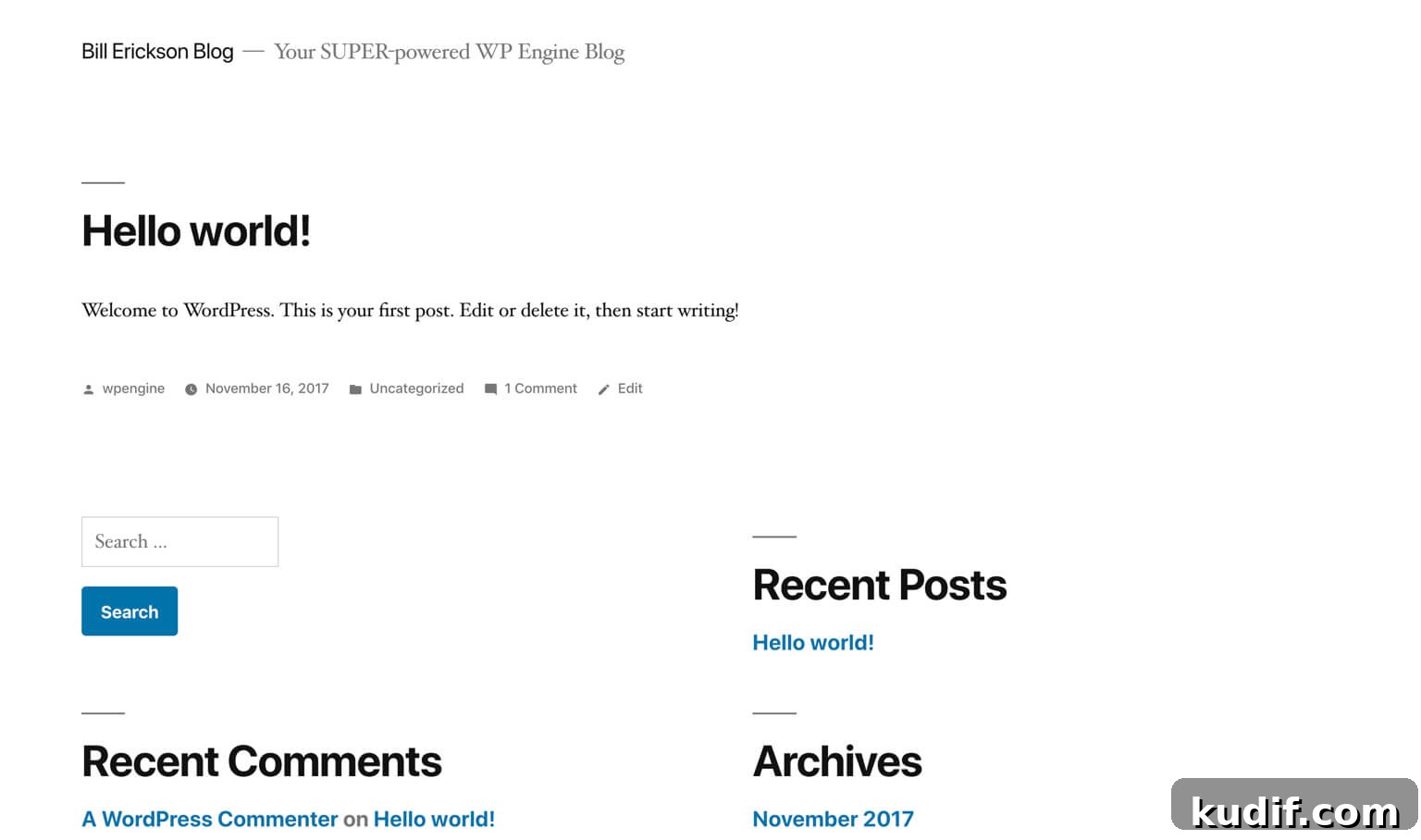
Step 2: Select a theme
Browse available Genesis child themes and select one suited to your content and layout needs. I recommend choosing a recent theme to ensure compatibility with the latest WordPress features and to increase the chance it includes a one-click demo import.

For this walkthrough I use the Revolution Pro child theme as an example, but the steps are the same for most modern Genesis themes.
Step 3: Install your theme
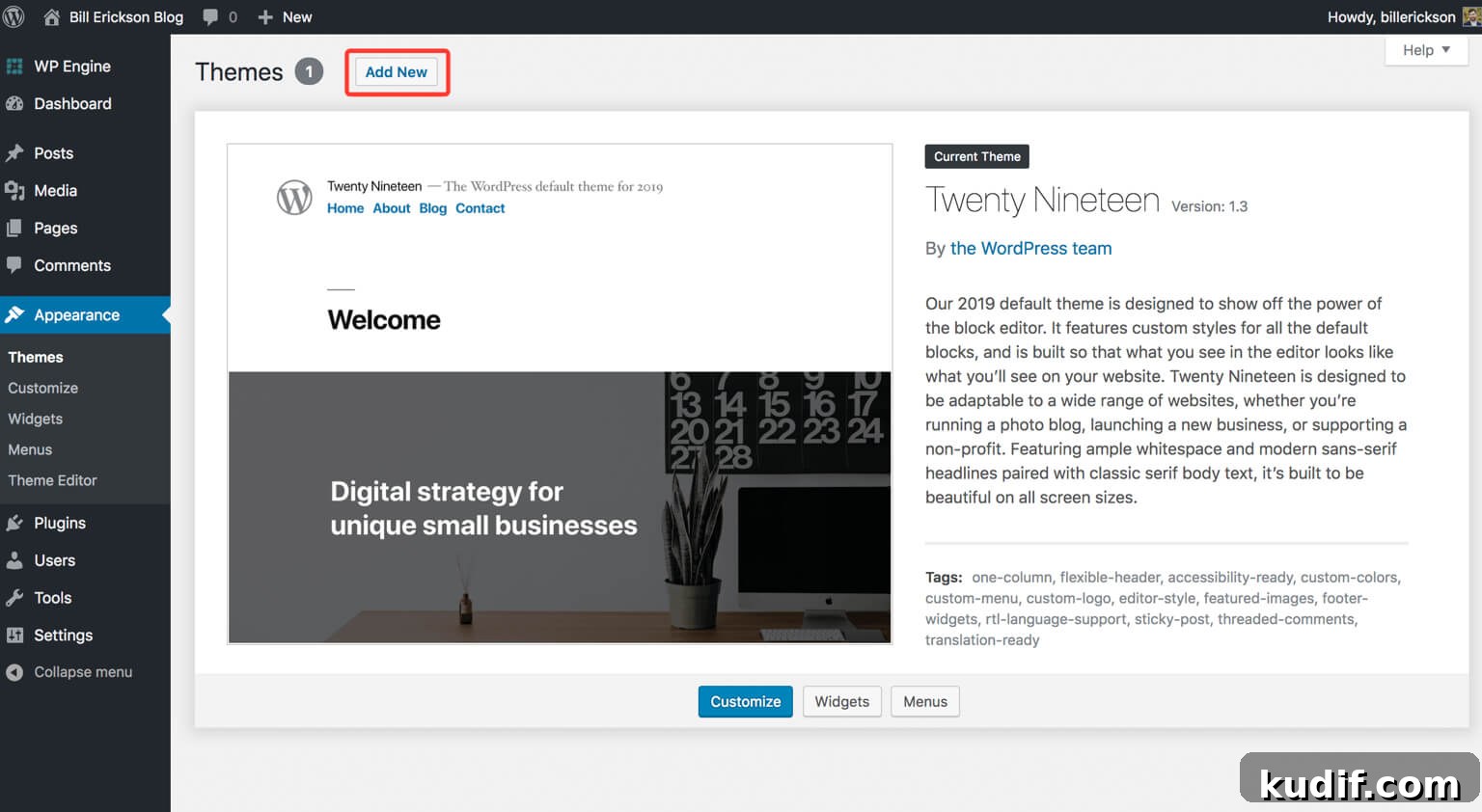
After purchasing or downloading your theme, you should have two zip files: the Genesis framework (parent theme) and your chosen child theme. In the WordPress admin, go to Appearance > Themes and click “Add New.”
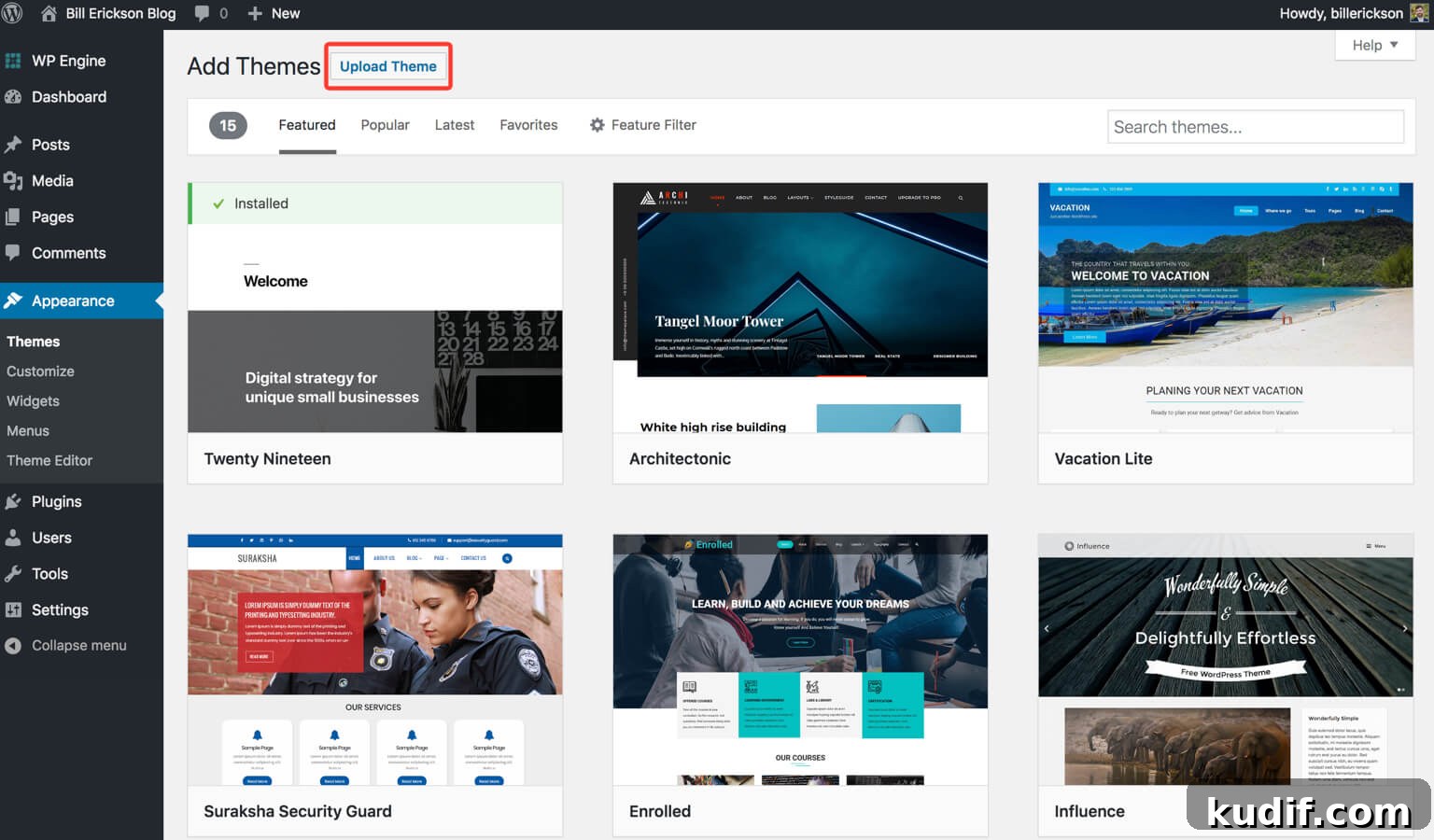
Click “Upload” to install the Genesis framework zip, then upload the child theme zip. After both uploads complete, activate the child theme to apply it to your site.
Step 4: One-click demo install
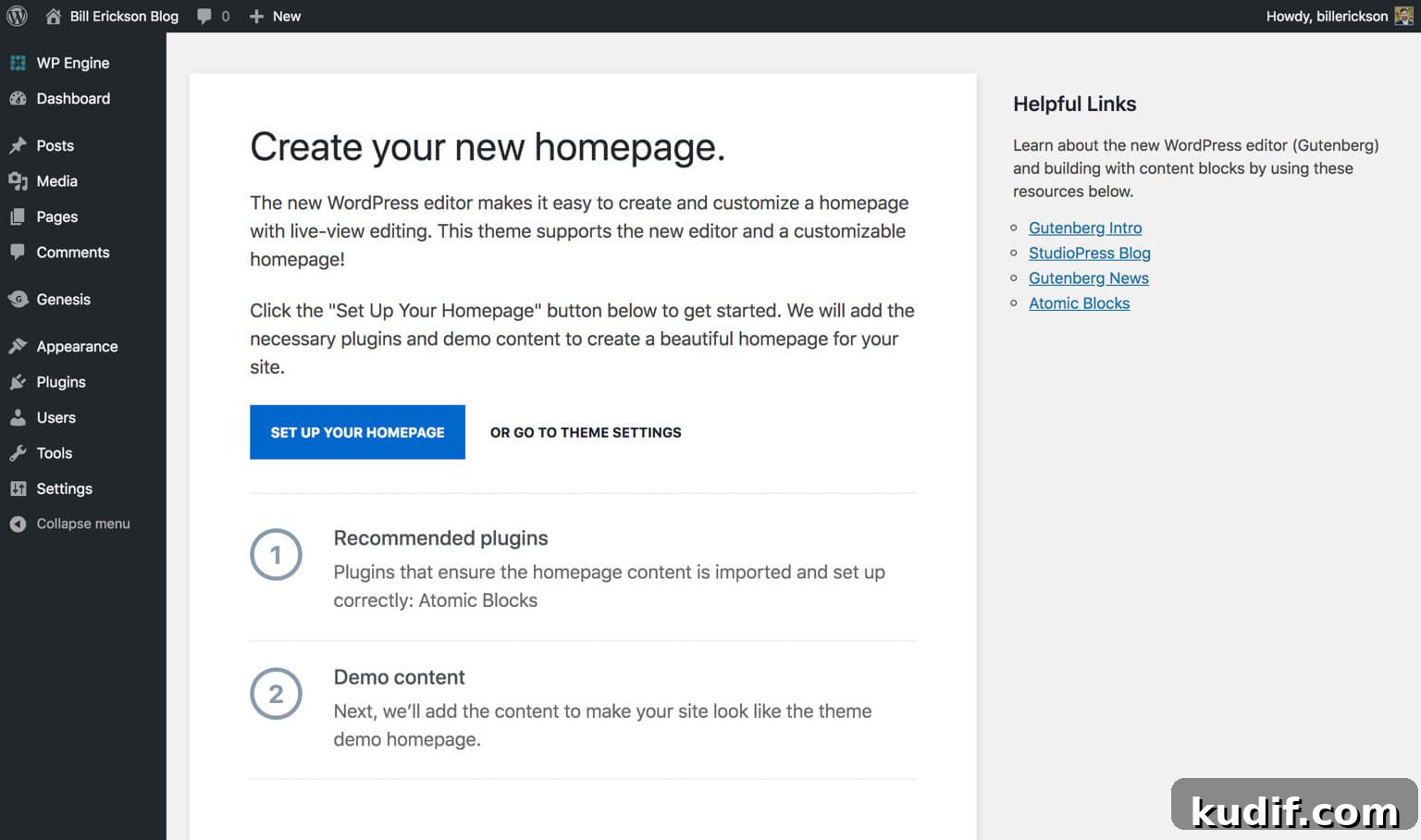
If your selected child theme supports one-click demo import, you’ll see an option to import demo content. This process installs any recommended plugins and imports content, menus, and widget settings so your site matches the theme demo. After the import finishes, visit your homepage, click “Edit Page” in the admin toolbar, and begin replacing demo content with your own.
WordPress Training
If you need help learning the WordPress editor or backend, consider a structured video tutorial service that covers core features, content editing with the block editor (Gutenberg), and common plugins. These resources make it easy to get comfortable managing and updating your site.
Recommended Plugins
These plugins are common on most WordPress sites and help with SEO, forms, analytics, and performance:
- Yoast SEO — assists with search engine optimization and on-page guidance.
- WPForms Lite — a user-friendly contact form plugin; premium upgrades add advanced fields and payment integrations.
- MonsterInsights — simplifies Google Analytics integration and reporting within WordPress.
- WP Rocket — a caching and optimization plugin to improve page speed and overall performance.